Learn how to install, configure, and use WorkDiary to track your overtime work effectively.
Get WorkDiary running on your computer
.exe installer from the Download page
Tip: If Windows SmartScreen warns you, click "More info" then "Run anyway". The app is safe but not code-signed yet.
.deb package
sudo dpkg -i workdiary_*.deb
sudo apt-get install -f # Install dependencies
workdiary in terminal
.dmg file
Note: On first launch, right-click the app and select "Open" to bypass Gatekeeper. Go to System Preferences > Security & Privacy > Open Anyway.
Connect your MegaAds account
WorkDiary uses your MegaAds account for authentication. This allows seamless sync with your team's dashboard.
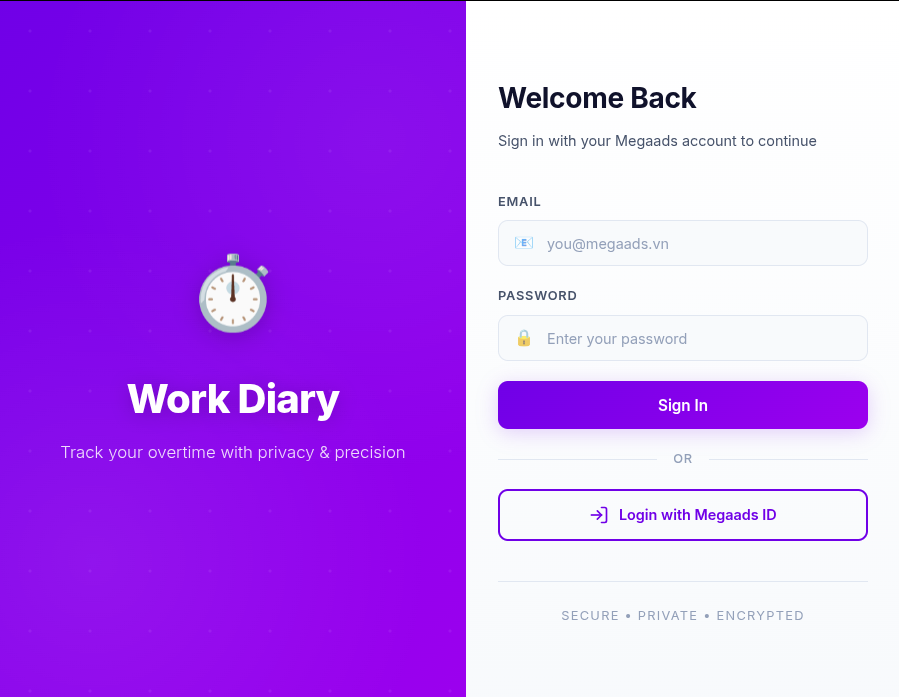
WorkDiary Login Screen
When you first open the app, you'll see the login screen.
This will open your default browser for OAuth authentication.
Log in with your MegaAds credentials and grant permission to WorkDiary.
After successful authentication, you'll be automatically redirected back to WorkDiary and logged in.
Tip: Your login session is saved securely. You'll stay logged in until you manually log out.
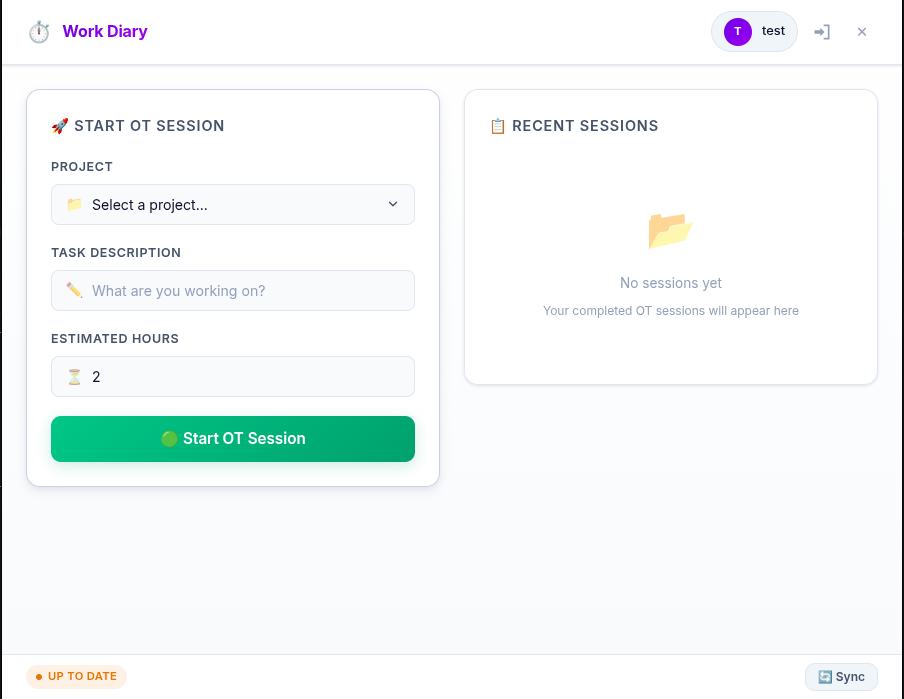
Begin recording your overtime work
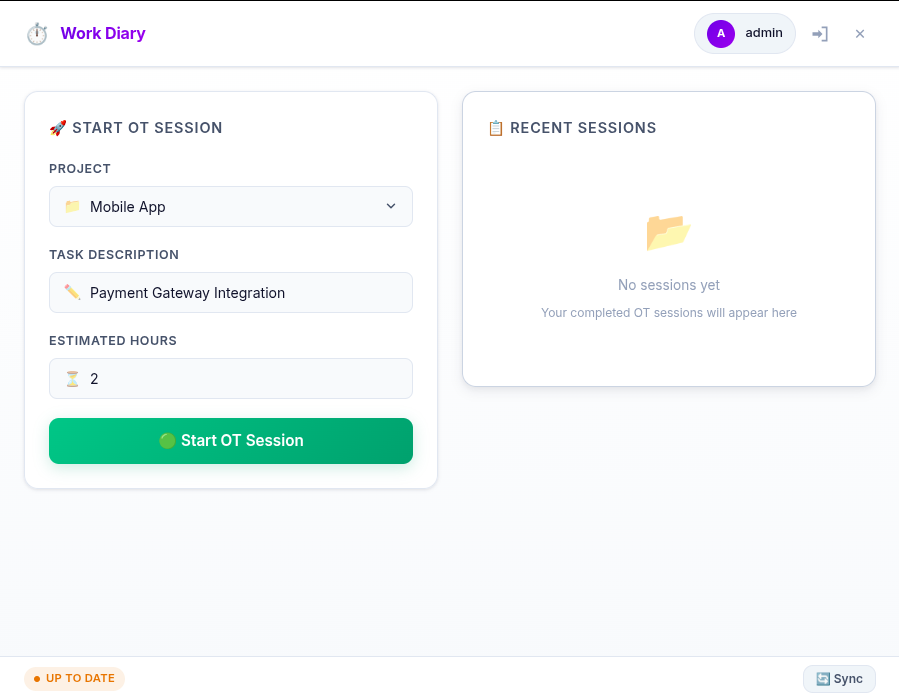
OT Form Dialog
Fill in OT Details
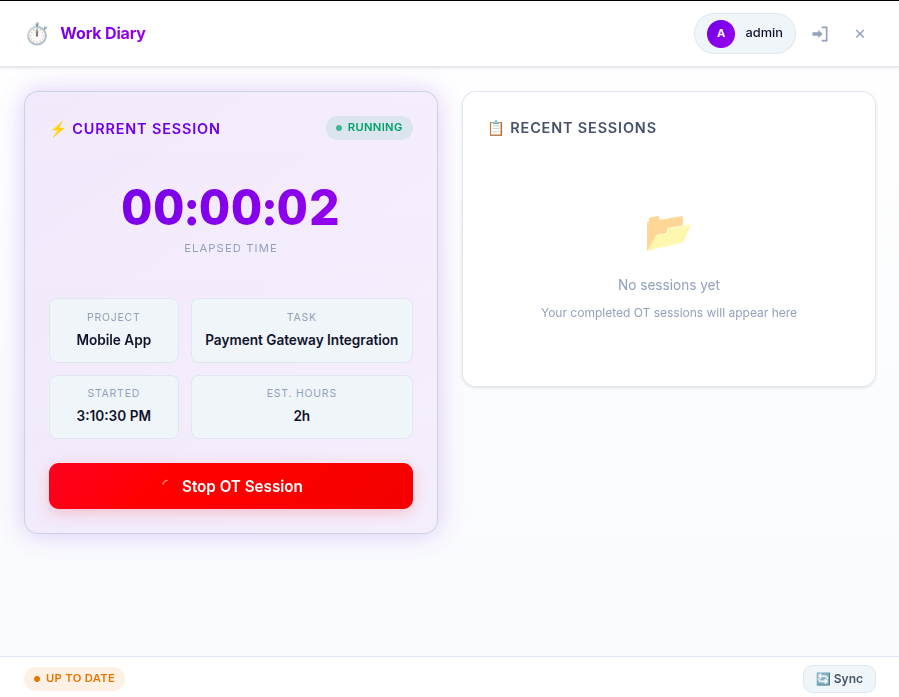
App is tracking your work
While tracking is active, WorkDiary will:
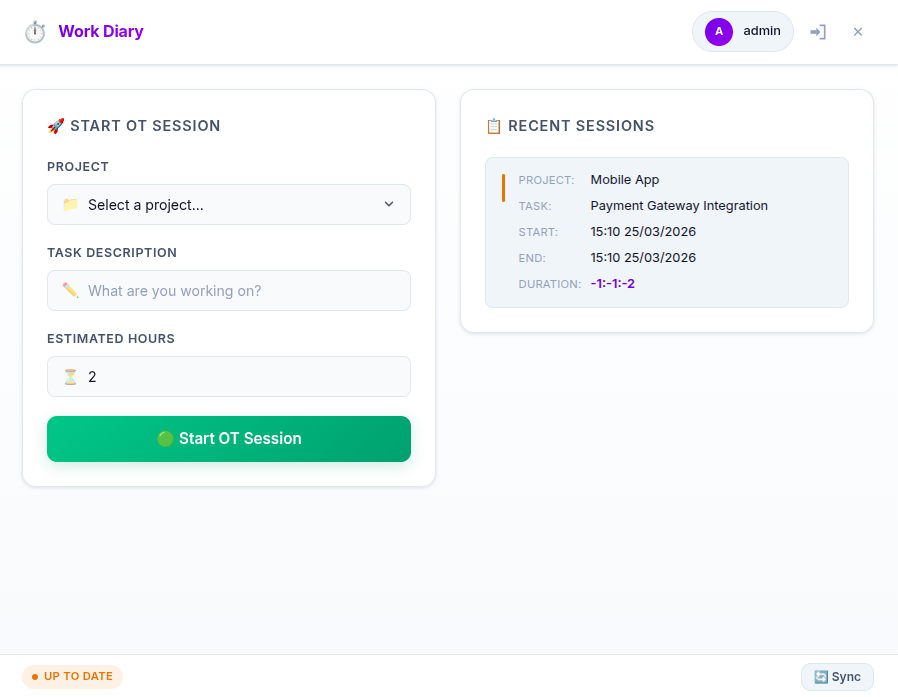
Confirm end of OT session
Important: Always remember to stop tracking when you finish working. This ensures accurate overtime records.
Customize WorkDiary to your needs
Admin only
Ctrl + Shift + T
Ctrl + Shift + S
Ctrl + Shift + W
Ctrl + ,
Sync your data to the team dashboard
WorkDiary automatically syncs your overtime sessions to the cloud dashboard. Your team lead can then view and approve your overtime records.
Sessions are synced automatically when you stop tracking (requires internet)
If offline, data is stored locally and synced when connection is restored
All data is transferred securely over HTTPS
Check your sync status in the app:
Common issues and solutions
SmartScreen may block unsigned applications.
Solution: Right-click the file > Properties > Check "Unblock" > Apply. Or click "More info" > "Run anyway" in SmartScreen dialog.
Permission issues may prevent screenshots.
Solution: Grant screen recording permission in System Preferences (macOS) or ensure no other screen recording app is conflicting.
OAuth callback may be blocked.
Solution: Ensure your default browser allows popups and redirects. Clear browser cookies and try again.
Network or server issues.
Solution: Check your internet connection. Try logging out and back in. If the problem persists, contact your administrator.